

Many people outside of tech don’t realize how AI has advanced over the last couple years, so I figured I’d provide an overview of different AI features and tips and tricks for using them. I’ll focus on Google’s AI but other AI providers offer similar features. For a general discussion on using AI, see this podcast episode.
Disclaimer: I'm an engineer at Google, but this is a personal blog based on public info; it doesn't represent the views of my employer.
Here’s an overview of Google’s AI search and chat options from simplest to most advanced:
AI overviews in search - these show up automatically for Google searches. For basic info they can be fine, but I don’t find them as good for more complex queries. They often summarize results from a single web page.
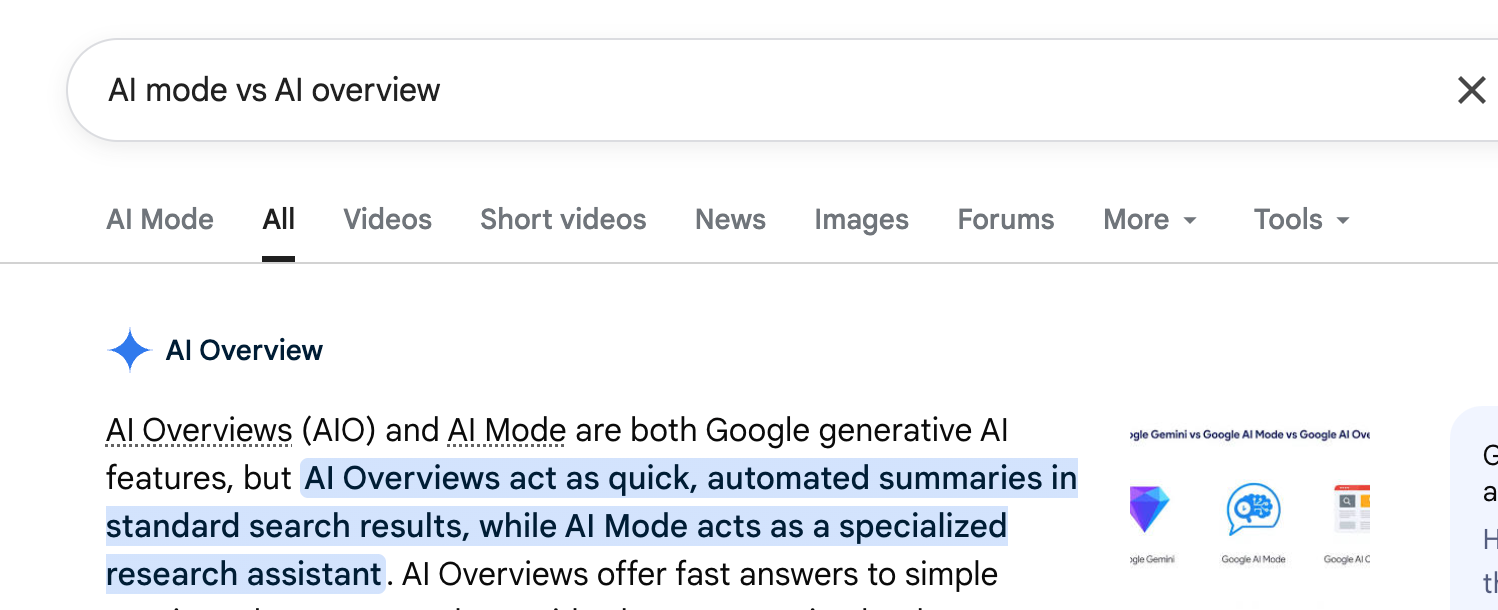
AI mode in search - a quick click on top of the search results opens AI mode. It performs many background searches, creates a detailed summary, and will often create tables summarizing the relevant info. You can also continue to chat with it. Google also just announced improvements to AI mode to better integrate it into Chrome.
Gemini - Gemini is Google’s AI chat app, similar to ChatGPT and Claude. It’s directed at answering a wide range of questions, which often don’t require as many searches as AI mode performs.
Gemini Models
If you have a Google subscription (more on that in a moment), you can pick your AI model:
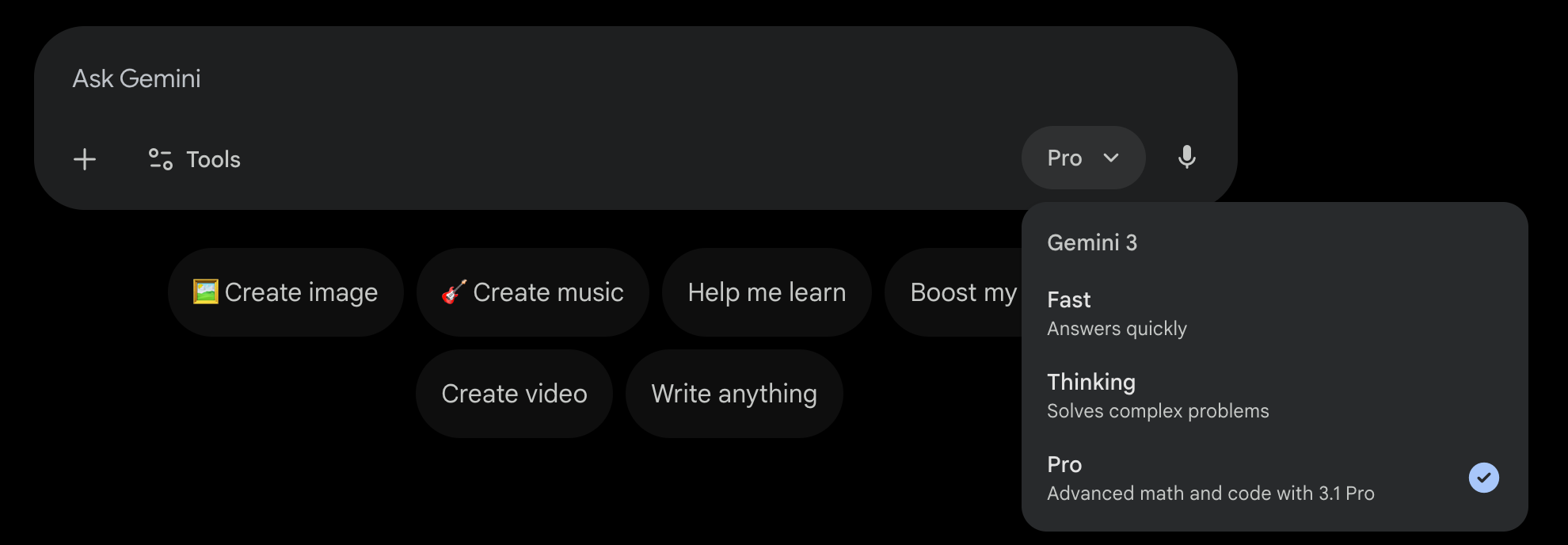
People sometimes complain about an answer Gemini gave and it turned out they were using the fast model. “Fast” is good for quick simple answers, but for more complex answers you want the AI to use more search and reasoning. Reasoning is when the AI thinks to itself (although you can also view its “thoughts”) before outputting an answer. AI is significantly more accurate than it was a few years ago, and search and reasoning is a big reason why.
“Thinking” and “Pro” both use reasoning, but the Pro version uses a more expensive slower model of Gemini. Gemini recommends using Pro for math and code, but it can be better for other complex questions too, if you don’t mind waiting.
Tricks to save money
AI Studio
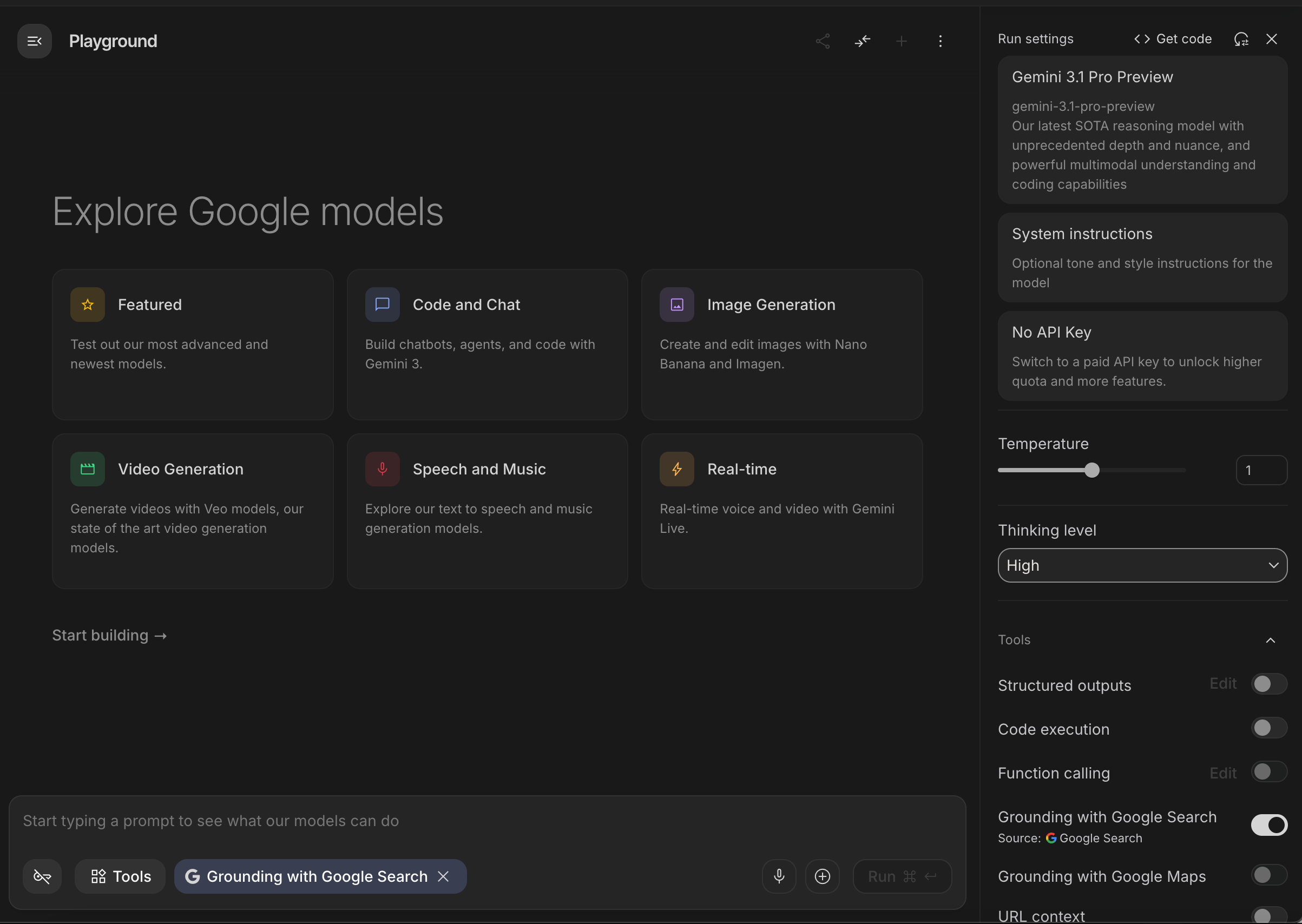
If you want to access Pro features without paying, you can use Google’s AI Studio. While it’s intended for developers, the app is easy enough for anyone to use. Just make sure to specify the settings you want on the side:
Temperature - how much randomness is used when generating an answer. The default is fine, but sometimes it’s worth lowering to get a more consistent answer.
Grounding with Google search - whether the answer is enhanced with search, usually worth enabling.
Thinking Level - how much thinking the AI should use for its response. Set it to “high” for hard questions.
Google AI Pro Subscription
AI Studio is a great free tool, but it’s worthwhile to subscribe to premium options if you hit the free tier limits, want access to Gemini pro in the regular app, want to use advanced tools like Deep Research, or want access to the other associated features. While the official price is $20 / month, there are ways to save:
Verizon discount - If you have a Verizon internet plan or cell plan, you can get Google AI pro for $10 / month instead of $20 / month.
AI Plus - If you don’t have Verizon, you can consider Google’s cheaper “AI Plus” plan instead of the Pro plan.
Family sharing - After signing up for Google AI pro, you can share it with up to 5 additional family members by adding your family members at g.co/YourFamily They will also get access to the shared 5TB of online storage.
Google AI pro now comes with 5TB of online storage so you can keep all your emails, photos and Drive files, as well as backup your computer. This is a solid deal: Up to 6 people can get access to Gemini Pro + other AI features + online storage for $10-$20 / month.
Advanced Gemini features
If you have a paid subscription and click on “Tools” in Gemini, you’ll see many options:
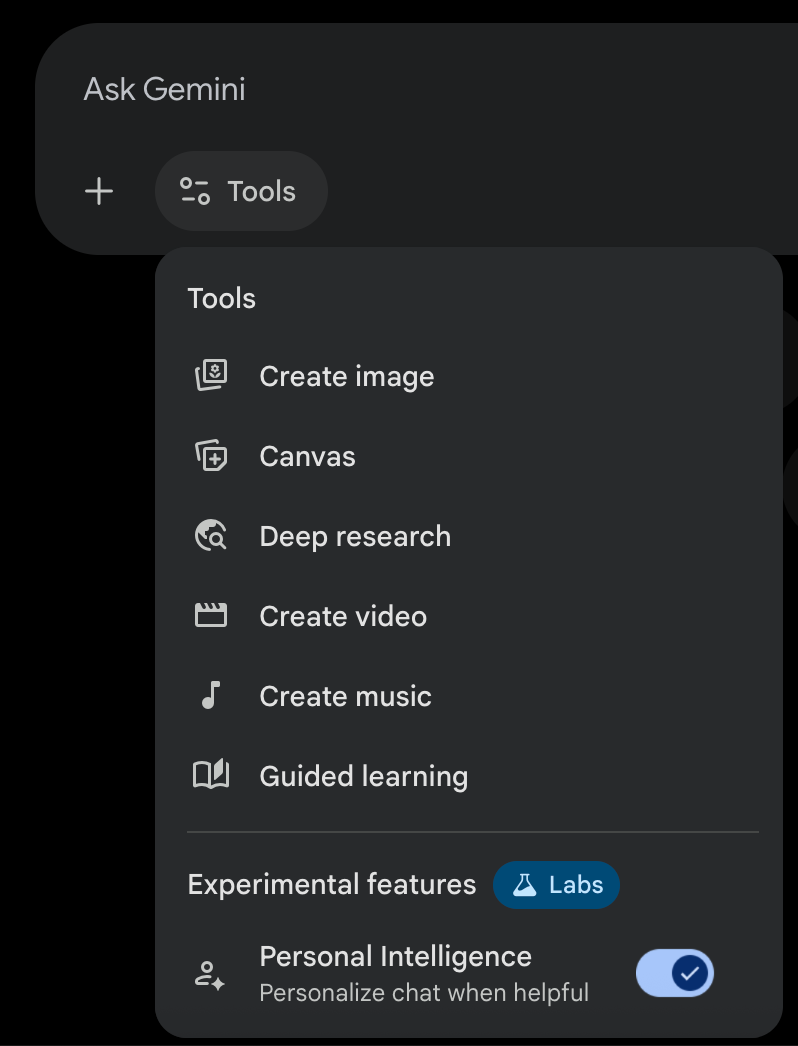
That’s a lot of tools worth exploring, but for now I’ll just discuss two of them briefly:
Deep Research - this will spend a few minutes searching hundreds of online sources then write up a long report about your topic. It’s not useful for casual questions, but it’s helpful for important questions that have many sources online, such as a health topic or an overview of a specific research area. You can then follow up to verify specific points. Besides the default option of searching the web, you can now also have it search through your Drive and Gmail.
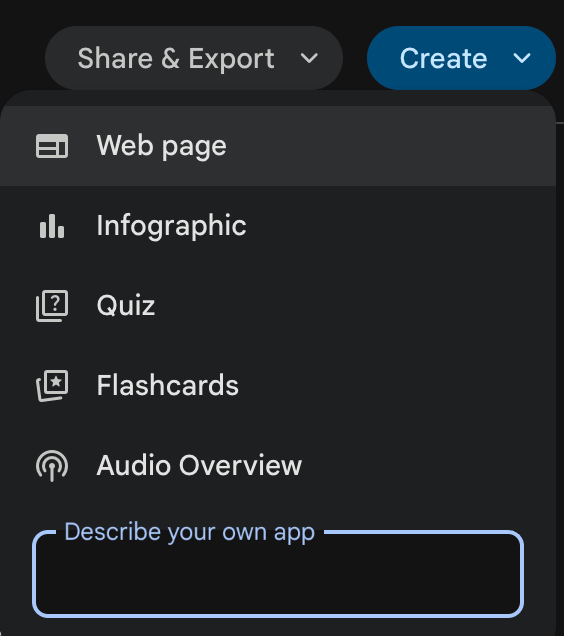
Canvas - this is an interface for iterating with the AI. For example, you can ask it to generate an essay and then directly edit it afterwards. You can also create simple web apps or other content:
Gemini Live
Gemini Live is a lesser-known feature inside the Gemini mobile app that you can talk to. Some people like to use it have a back-and-forth conversation while others leave it on to ask questions to while they read something. You can also share live video with it (from your camera) or share your phone screen. Let’s say you’re trying to fix a broken appliance - it’s often faster to just share live video and ask it questions, rather than sharing multiple photos with it.
Using Google AI elsewhere
You can access Gemini assistance in Docs and Gmail, but I won’t go into more detail about that. NotebookLM is useful if you have sources that you want to summarize or ask about, although there are now ways to do that in Gemini directly.
Gemini in Chrome appears on the top right corner of Chrome and lets you have AI do simple tasks for you online. For example, I wanted a list of all the books I had ever purchased on Amazon, so I asked Gemini in Chrome to navigate through my Amazon book orders and extract all the info. I then uploaded the list to Gemini and asked for further book recommendations.
Creating apps with AI
It used to be only software developers could create web and mobile apps but now anyone can with AI. There are many tools you can use to create quick apps:
Gemini - useful for very quick apps that you create in one prompt
AI Studio - previously I mentioned using AI studio to chat with the AI, but AI studio also has a whole “apps mode” for creating web apps. This is more powerful than Gemini for iterating on web apps, and AI studio also offers ways to automatically integrate AI in your app and to publish it on the web.
If you decide you want to build more serious apps, you’ll likely want to code on your desktop and then you can consider a tool like like Google Antigravity. It’s considerably more powerful than the web apps, but there’s also more ways for things to go wrong…